Cameras are important in Unity. The camera displays what the player of your game sees. Lights in Unity do exactly what they do in real life. You can move lights around to see objects better. Make sure the Transform of the "Main Camera" is set to position (0, 0, -15) and position of the Transform of the "Directional Light" is set to (0, 0, -15).
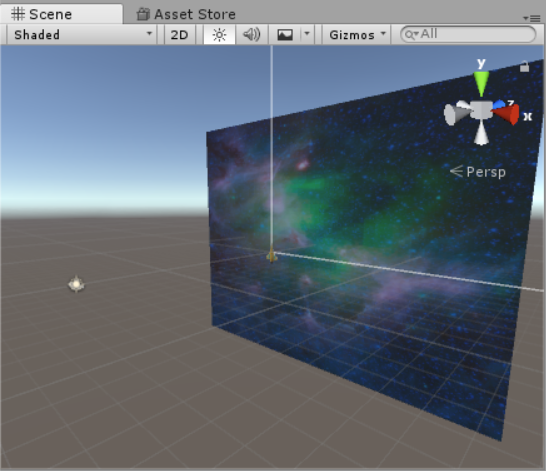
Create a 3D Object Quad and rename it to "Background" and set the Transform position to (0, 0, 1). Make sure the Rotation is (0, 0, 0).
Drag the "SpaceNebula" image from the "Materials" folder in the Project Viewer and drop it on the Background object in the Hierarchy.
Set the Scale of x and y on you "Background" Quad until it covers the entire Game Display. (Make sure it's set to the "Standalone" Aspect Ratio) Awesome, you have a background!
Now lets add something to control! From the "Prefabs" folder drag and drop the "Player" object onto your scene view. Set the Transform position to (0, 0, 0)
Did you notice that the spaceship has a shadow? It doesn't look very good, so you can get rid of it. To select which objects the "Directional Light" applies to you use the Culling Mask and Layers properties of the light. In the "Directional Light" Inspector click the "Layers" drop down on the top right.
 Click "Add Layer...". In the first open layer type "Background" and go back to the "Directional Light" Inspector. Click the Culling Mask drop down menu and select "Everything". Now deselect the "Background" in the Culling Mask. The Culling Mask will now say "Mixed...". Go to your "Background" object's Inspector and select the layer drop down menu and set it to the "Background" layer you just created. There will be no more shadow!
To control the game with scripts without attaching them to a 3D object, "Empty Objects" can be used. Create an "Empty Object"(GameObject > CreateEmpty). Name this "Asteroids". Create another called "Lasers".
Your scene should look like this when it is done!
INTERMEDIATE UNITY

Creating Your Game World
I'm learning: Unity